Docker
About
Docker is a software platform that allows you to build, test, and deploy applications quickly. Docker packages software into standardized units called containers that have everything the software needs to run including libraries, system tools, code, and runtime. **
Files inside Directories Inside vs Outside the Container
When operate inside the container, the entire container file system is isolated from the host file system. You will not able to access the environment located inside the container.
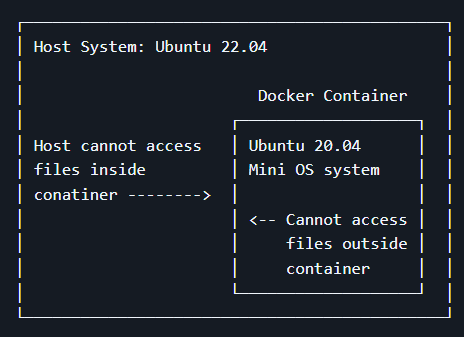
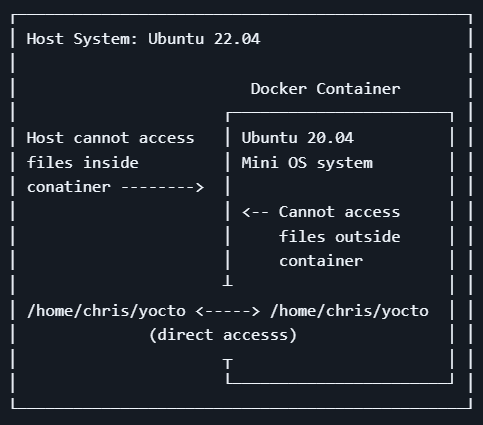
To access the the files inside the the docker container, you should choose a shared directory on your host machine that can be accesible from both inside and outside the container.
In this case:
- Host PC environment: /home/chris/yocto
- Inside docker container: /home/chris/yocto
User Accounts Inside vs Outside the Container
Users inside a docker container are different to the host users, they have different UID.
If you have to use sudo docker everytime to run docker, it is highly recommended to add the user into the docker group:
sudo usermod -a -G docker ${USER}
Check that you are in the docker group:
id -nG | grep docker
Verify that you can run docker commands without sudo:
docker run hello-world
Setup
The Yocto 3.1 project must be built under Ubuntu 20.04 environment, the docker image must fulfill this requirement to be able to function properly.
Step 1: Download the correct dockerfile
You can use the following command to download:
wget https://raw.githubusercontent.com/renesas-rz/docker_setup/master/Dockerfile.rzg_ubuntu-20.04
Step 2: Build an image
Before you can use docker for BSP, a docker image need to be built.
Copy and paste the following code:
docker build --no-cache \
  --build-arg "host_uid=$(id -u)" \
  --build-arg "host_gid=$(id -g)" \
  --build-arg "USERNAME=$USER" \
  --build-arg "TZ_VALUE=$(cat /etc/timezone)" \
  --tag rz_ubuntu-20.04 \
  --file Dockerfile.rzg_ubuntu-20.04  .
- Change the
--tagname to whatever you want.
After building, verify the image was created by using the following code:
docker images
REPOSITORY           TAG       IMAGE ID       CREATED          SIZE
rz_ubuntu-20.04      latest    960cf1be32b0   57 seconds ago   1.25GB
Step 3: Start a Container using the Image
mkdir -p /home/$USER/yocto

docker run -it \
  --name=my_container_for_20.04 \
  --volume="/home/$USER/yocto:/home/$USER/yocto" \
  --workdir="/home/$USER" \
  rz_ubuntu-20.04
Step 4: Using the container
To show the running containers:
docker ps
To show all your containers (running and stopped):
docker ps -a
To start your container:
docker start <container_name>
To enter back into your running container:
docker exec -it <container_name> /bin/bash
To exit the container:
exit
Below are the Docker commands that are often used:
docker info
docker images
docker ps                 ( only running container)
docker ps -a              ( all )
docker start my_container_for_20.04
docker exec -it my_container_for_20.04 /bin/bash
docker rm <container>     # remove a container, stop it first
docker rmi <image>        # remove a image
References: